
The Smart City MDU Wi-Fi solution is powered by Calix PropertyWorkx, a streamlined platform designed to help property managers easily manage tenant Wi-Fi access and provide the information required by our Network Operations Center support team. This guide walks you through the simple steps needed to onboard new tenants and remove departing ones. This process ensures that only authorized residents can connect to the property’s network, that access is promptly removed when a tenant moves out, and that only verified users contact the Smart City NOC. For support or information at 407-828-6700 option #2.
Log In to the Property Management Portal
Before you can begin onboarding tenants, you’ll need to access the portal.
- Once your property has been fully configured, you will receive a login URL.
- Enter your assigned username and password to access the dashboard.
Add a New Tenant
When a new tenant moves in, adding them to the system is very simple. Follow these steps:
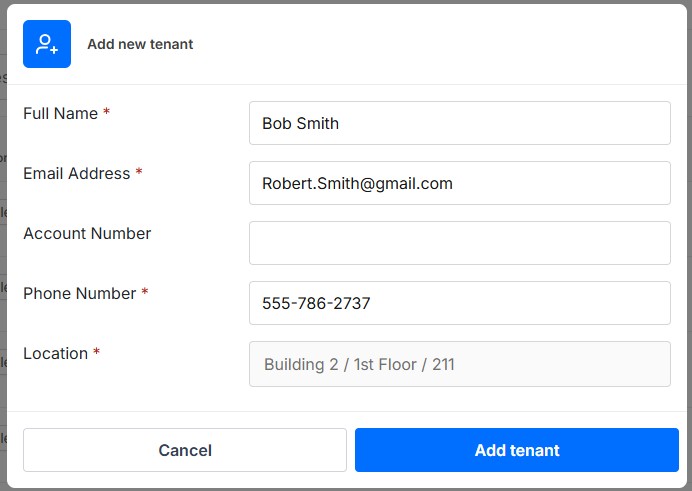
- From the main dashboard, select Add Tenant.
- Enter the tenant’s required information (such as name, unit number, and service start date).
- Review the details for accuracy.
- Click Add Tenant to complete the onboarding process.
The tenant is now active in the system, and their services will be provisioned automatically.
The next step is to send the invitation/welcome packet to the tenant via system notification via Email.
- From the Tenants tab locate the tenant.
- Click the kabob icon to open the pop-up for the email welcome packet.
- Receive confirmation.

Remove a Tenant
When a tenant moves out, removing them from the portal ensures their services are deactivated promptly. To remove a tenant:
- Navigate to the tenant list or search for the tenant by name or unit number.
- Select the tenant you wish to remove.
- Click the kabob icon to open the pop-up menu, then select Delete Tenant.
- Confirm the removal when prompted.
